
Migrate to Biome from ESLint & Prettier: A Step-by-Step Guide
By Dmytro Laptiev • February 6, 2026
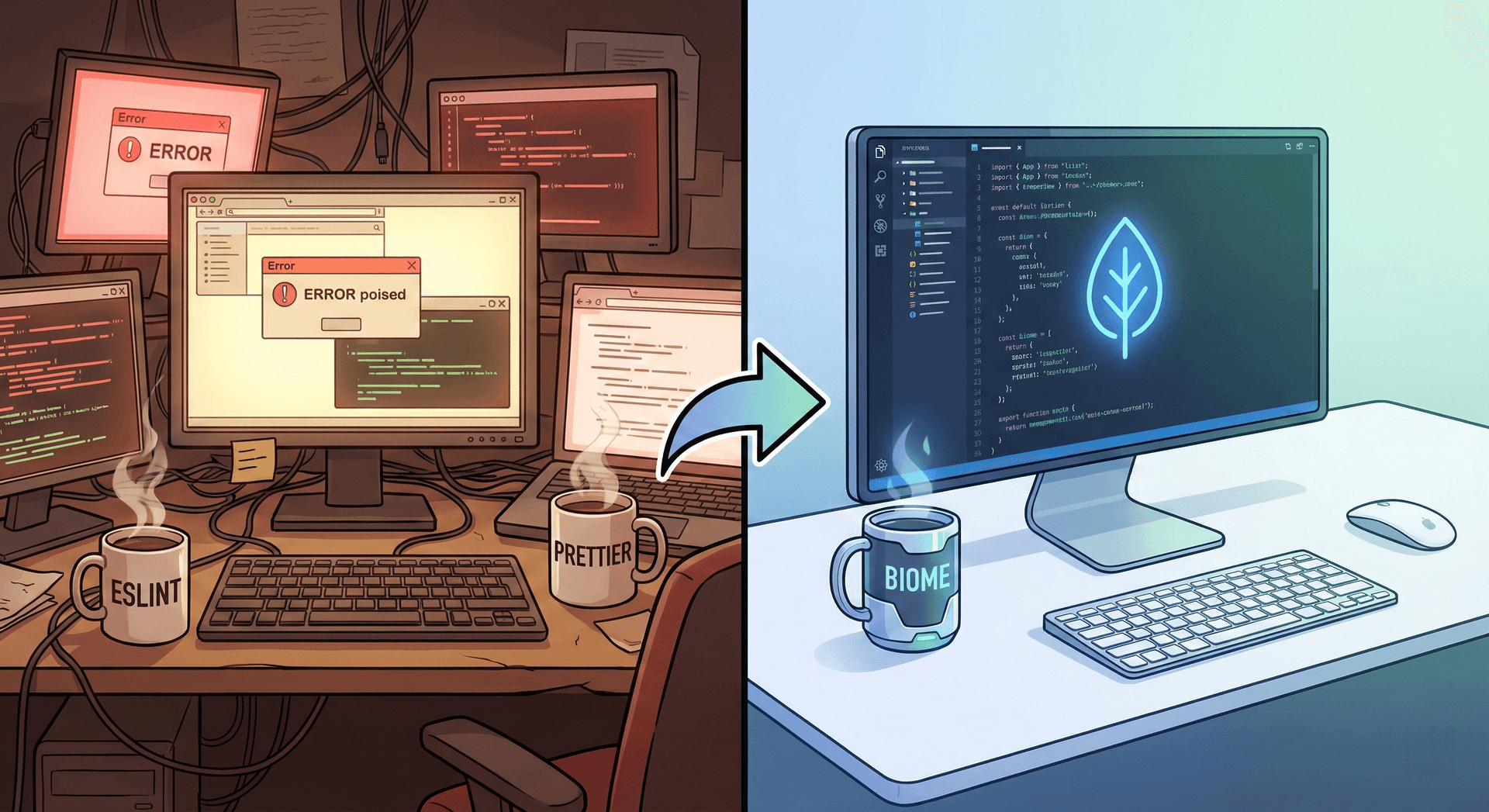
How to Install Biome and Migrate from ESLint + Prettier
Managing ESLint and Prettier configurations can be cumbersome and slow. Biome (formerly Rome) is a high-performance, Rust-based toolchain designed to replace both. It unifies linting and formatting into a single, fast dependency.
Here is how to install Biome and migrate your existing project in five steps.
Why Migrate?
- Speed: Built in Rust, Biome is significantly faster than Node.js-based tools.
- Simplicity: It eliminates the need to manage conflicting
.eslintrcand.prettierrcfiles. - Zero Config: It provides sensible defaults out of the box, reducing setup time.
Step 1: Install Biome
Add Biome to your project using your preferred package manager. It is recommended to pin the exact version to ensure consistency across your team.
npm install --save-dev --save-exact @biomejs/biomeStep 2: Initialize Configuration
Generate the configuration file by running the initialization command:
npx @biomejs/biome initThis creates a biome.json file in your root directory. This single file controls both the formatter and the linter.
Step 3: Run the Migration Tool
Biome includes a built-in command to smooth the transition. It reads your existing ESLint and Prettier configuration files and attempts to port settings (like indentation, quote style, and rule sets) into biome.json.
Run the migration command:
npx @biomejs/biome migrateNote: While Biome covers the majority of standard rules, specific custom ESLint plugins may not have direct equivalents yet. Biome will inform you if manual adjustments are needed.
Step 4: Update package.json Scripts
Update your scripts to use the Biome CLI. Locate the scripts section in your package.json and replace your old lint/format commands with the following:
{
"scripts": {
"lint": "biome lint .",
"format": "biome format --write .",
"check": "biome check .",
"ci": "biome ci ."
}
}format: Formats your files (equivalent toprettier --write).lint: Runs the linter to catch code quality issues.check: Runs both formatting checks and linting (safe for local development).ci: A stricter check optimized for CI environments (reports errors but does not modify files).
Step 5: Clean Up Old Tools
To prevent conflicts and confusion, remove the legacy tools and their configuration files.
- Uninstall packages:
npm uninstall eslint prettier eslint-config-prettier eslint-plugin-react- Delete configuration files: Remove files such as
.eslintrc.js,.prettierrc,.eslintignore, and.prettierignore. - Update VS Code: Disable the ESLint and Prettier extensions for your workspace and install the official Biome extension to get real-time feedback in your editor.
Conclusion
Switching build tools can sometimes feel like a chore, but moving to Biome is a breath of fresh air. It simplifies your setup and drastically speeds up your workflow, letting you focus on what actually matters - writing great code. Give it a spin on your next project and enjoy a faster, happier development experience!