
How to Set Up a Caddy Reverse Proxy (The Easy Way)
By Dmytro Laptiev • February 11, 2026
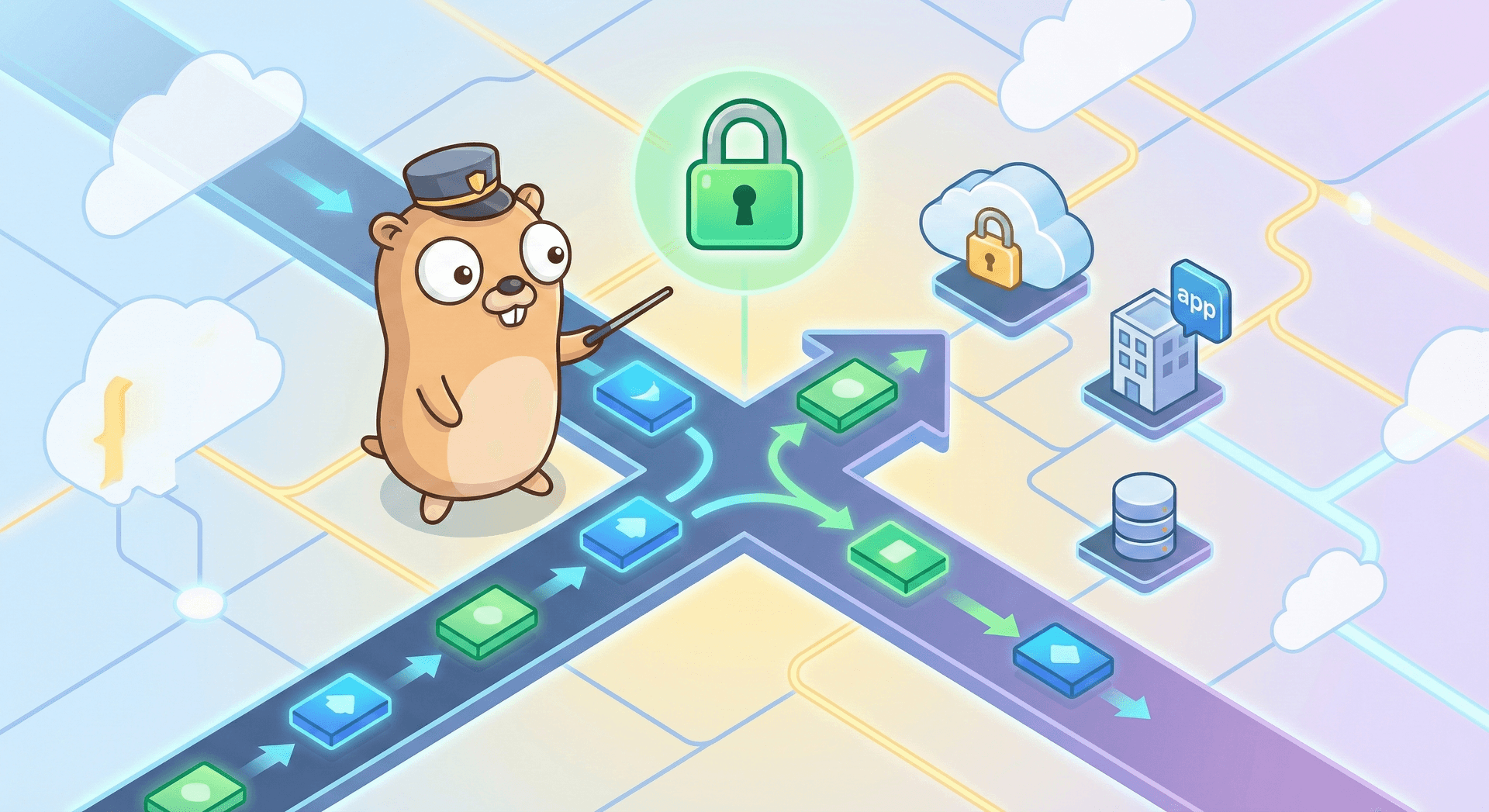
Reverse Proxy Hosting with Caddy Server
If you have ever tried to set up a web server using tools like Nginx or Apache, you know it can be a headache. You often have to wrestle with long configuration files and run separate scripts just to get a secure "padlock" icon on your website.
This is where Caddy Server shines.
Caddy is a modern web server that handles the boring stuff for you. The best part? It sets up HTTPS automatically. You don't have to configure it; it just works. In this guide, we’ll look at how to use Caddy as a "reverse proxy" to put your applications online safely and quickly.
What is a Reverse Proxy?
Think of a reverse proxy like a receptionist for an office building.
When a visitor (a user on a web browser) arrives, they don't walk straight to your desk. They stop at the front desk (the proxy). The receptionist checks who they are looking for and sends them to the right office (your application).
Using Caddy as this "receptionist" is great for a few reasons:
- It’s Safer: Users never touch your actual application directly.
- It’s Secure: Caddy handles the encryption (SSL/TLS) so your app doesn't have to.
- It’s Simple: Managing one main entry point is easier than managing ten different apps separately.
Why Use Caddy?
The main reason people switch to Caddy is the Caddyfile. This is the text file where you tell the server what to do.
In older servers like Nginx, setting up a secure proxy might take 50 lines of code. With Caddy, it usually takes three lines. It saves you time and reduces the chance of making a mistake.
How to Set It Up
1. Install Caddy
Caddy works on almost everything, from Windows and Mac to Linux servers.
- Debian/Ubuntu:
sudo apt install caddy
look at official docs for more information: https://caddyserver.com/docs/install
2. Configure the Caddyfile
This is where the magic happens. Create a file named Caddyfile (no extension).
Let's say you have a web app running on your server on port 3000, and you want it to show up at example.com. Here is all you need to put in the file:
example.com {
reverse_proxy 127.0.0.1:3000
}That’s it. Really.
When you run Caddy with this file, it will automatically talk to Let’s Encrypt, get a certificate for your site, and start routing traffic to your app.
3. Running Multiple Apps (Subdomains)
If you are self-hosting a few different things-like a blog, a media server, and an analytics tool Caddy makes it easy to sort them out using subdomains.
# Your main website
example.com {
root * /var/www/html
file_server
}
# Your messy app
app.example.com {
reverse_proxy 127.0.0.1:8080
}
# Your analytics
stats.example.com {
reverse_proxy 127.0.0.1:9000
}A Note on WebSockets
Some apps require a "live" connection, like chat apps or real-time dashboards. These use something called WebSockets.
In other web servers, you often have to add special code to make this work. Caddy supports WebSockets right out of the box. You don't need to add anything extra to your config file; it just sends the traffic where it needs to go.
Final Thoughts
Caddy is a fantastic tool because it gets out of your way. It lets you focus on building or hosting your apps without worrying about certificates expiring or writing complex config files.
If you are looking for a stress-free way to host your projects, give Caddy a try. You might be surprised by how much time you save.